
Shared customers
One customer list for the whole business.
Customers are shared across your stores, so they can drop at one and collect at another. Each store keeps its own drawers, staff and reports, and you compare them side by side.
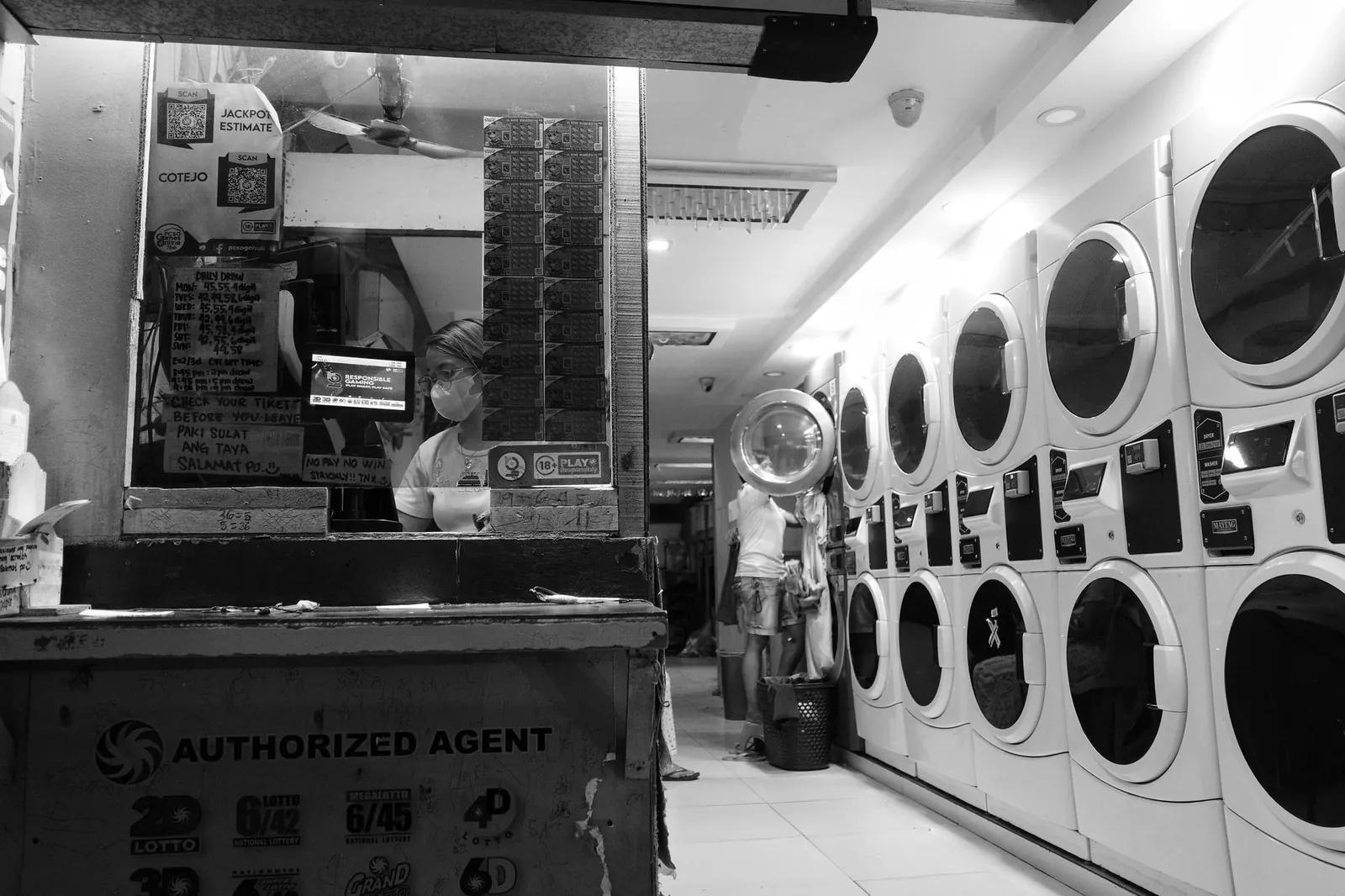
Add stores and drop points under one account with shared customers, per-store drawers and reports, and a side-by-side comparison of every location.
One customer list for the whole business.
Tax rate, turnaround, ready time, address and phone per store.
Money in, tickets, average ticket, turnaround, ratings and profit for every store at once.
Every report and the dashboard can be narrowed to one store.
Each store's registers and drawers are separate.
Staff are assigned to a store.
Part of every CleanerHawk account. Turn it on in Settings and it fits into the rest of the day.
Set its tax, turnaround and contact details.
Add the counter computers and printers.
Open Reports, Stores.
Yes. Customers and their tickets are visible from every store.
Yes. The plant scans tickets from every store.
It depends on your plan; see pricing.
Also in Management: Reports & analytics, Expenses & profit, Staff, roles & time clock,
Pick any range and see how it compares with the one before: what came in, what sold, when you are busiest, how fast orders turn around and what is still owed.
Plant & deliveryEach tag is scanned as it moves from cleaning to pressing to assembly.
ManagementEveryone signs in as themselves, sees what their job needs and nothing more, and clocks in from the same screen.
A short call, your price list loaded, and an honest answer on whether it fits your shop. Month to month, and your data exports any time.