
Moving from CleanCloud to CleanerHawk
The move comes down to your customer list, your prices and your counter setup. You keep using CleanCloud while you get CleanerHawk ready, then switch on a day that suits you.
How it works, step by step.
Your old system keeps running until you decide to stop. Most of the work is your customer list and your prices.
Export your customers
Most systems, including CleanCloud, let you export your customer list to a CSV or Excel file. Check the export or reports screen, or ask their support for an export.
Preview and import
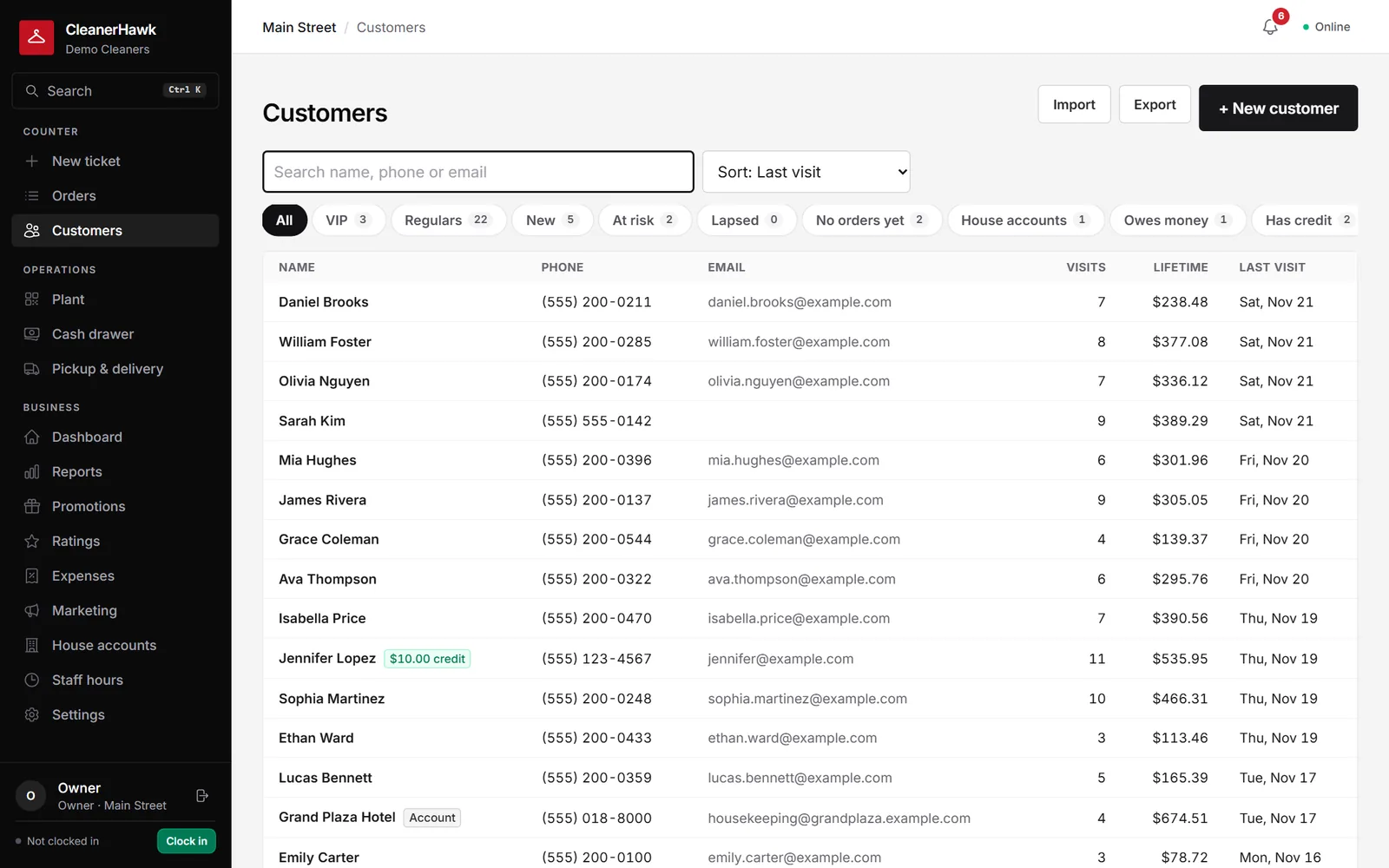
Upload the file and check the preview. Name or First/Last name, Phone, E-mail, Address, City, State, ZIP, Notes and Starch columns are recognised automatically. Duplicates are skipped.
Import ticket history if you have it
If you have a ticket export, import it with columns such as Ticket #, Date in, Date out, Customer, Phone, E-mail, Pieces, Total and Description.
Set up items, staff and hardware
Add your items and prices, staff and roles, registers, printers and card readers.
Run both for a few days
Take new orders in CleanerHawk and finish open orders in CleanCloud.
Switch over
When the open orders are done, move everything to CleanerHawk.
What moves, and how.
- CustomersFrom a CSV or Excel export: name, phone, e-mail, address, city, state, ZIP, notes and starch preference.
- Ticket historyIf you have an export: ticket number, dates, customer, pieces, total and description. Counts towards visits and lifetime spend.
- PricesRe-entered in CleanerHawk, or set up with our help from your price list.
- Open ordersFinish them in CleanCloud.
- Gift cards and store creditAdd remaining balances manually as store credit on each customer.
- Customer app usersCustomers sign in to your CleanerHawk app with a one-time code sent to their e-mail, so there are no passwords to move.
Switch-week checklist
- Export customers from CleanCloud to CSV or Excel
- Export order history if available
- Save your current price list
- Import and check the preview
- Set up staff, registers and printers
- Note gift card and credit balances
- Tell customers about your new app link
- Pick a switch-over day
About switching from CleanCloud
Other guides:
Where do I find the export?
Check the export or reports screen in CleanCloud, or ask their support for a customer export as CSV or Excel.
Do my customers need new passwords?
No. Customers sign in to your CleanerHawk app with a one-time code sent to their e-mail.
Can I import more than once?
Yes. Duplicates are skipped, so re-importing a corrected file is safe.
Can I keep using CleanCloud during setup?
Yes. Keep using it until you are ready to switch.