
Roles and permissions
Owner, manager, counter, plant and driver, each with sensible access.
Everyone signs in as themselves, sees what their job needs and nothing more, and clocks in from the same screen. You see who refunded, voided or changed a price.
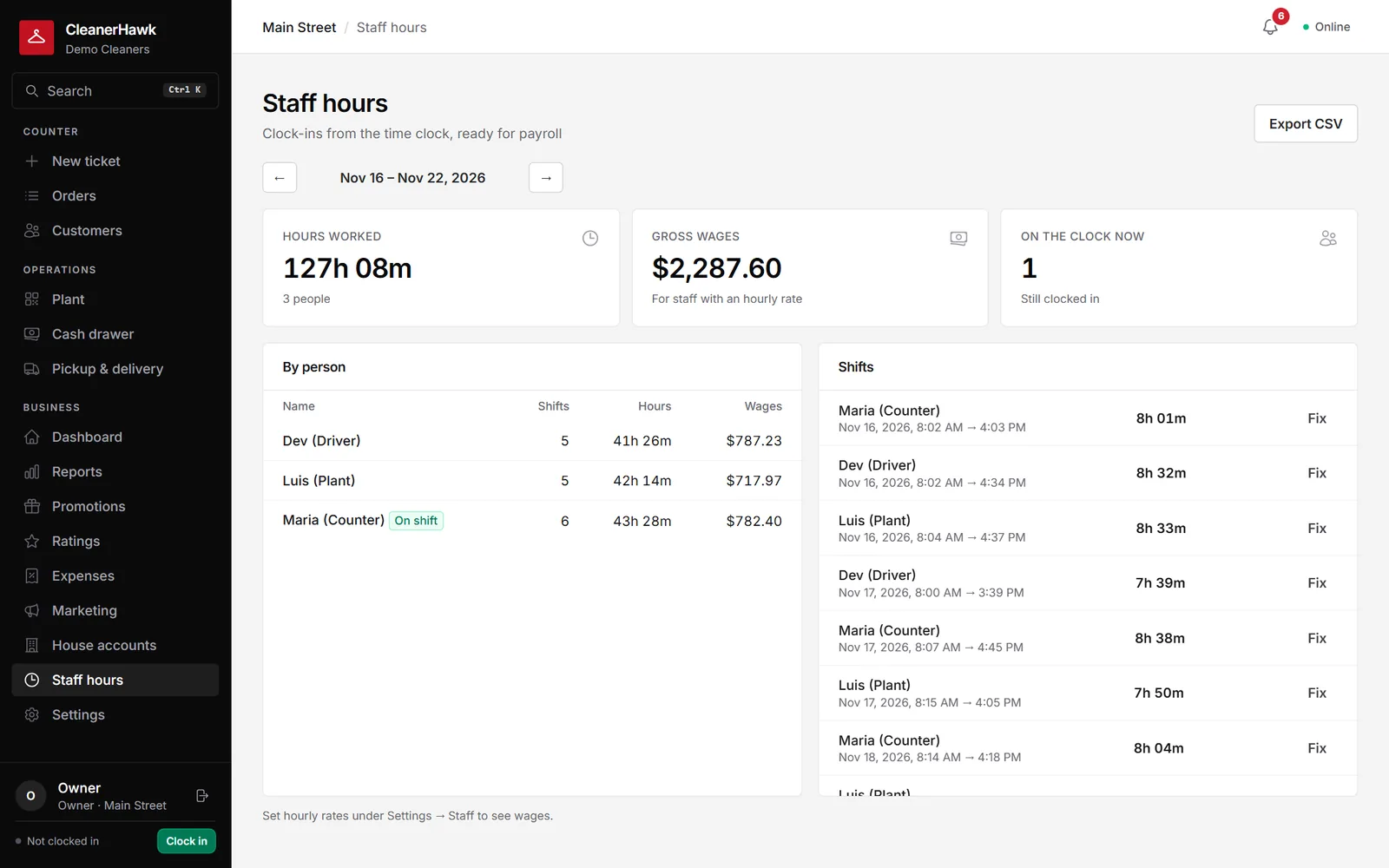
Give owners, managers, counter, plant and drivers the right access, switch staff with a PIN, track hours and wages, and keep an activity log of sensitive actions.
Owner, manager, counter, plant and driver, each with sensible access.
Staff switch users at the register with a personal PIN.
Clock in and out from the menu; fix a missed punch with a note.
Weekly hours and wages per person, with a payroll CSV.
Refunds, price changes, cancelled tickets and short drawers, with who and when.
Staff belong to a store and work where they are scheduled.
Part of every CleanerHawk account. Turn it on in Settings and it fits into the rest of the day.
Name, role, PIN and hourly rate.
And sign in to the register with their PIN.
Hours, wages and the activity log.
Used most by:
Related reading:
Only if their role allows it. Refunds are a separate permission.
No. Use it if you want wages in your profit numbers.
It depends on your plan; see pricing.
Also in Management: Reports & analytics, Expenses & profit, Multiple locations
Sales tell half the story.
CounterEach register has its own drawer session.
ManagementPick any range and see how it compares with the one before: what came in, what sold, when you are busiest, how fast orders turn around and what is still owed.
A short call, your price list loaded, and an honest answer on whether it fits your shop. Month to month, and your data exports any time.