
Switch to CleanerHawk without closing for a day
Moving to new software is mostly about your customer list, your prices and your counter setup. You keep using your old system until CleanerHawk is ready, then switch over on a day that suits you.
How it works, step by step.
Your old system keeps running until you decide to stop. Most of the work is your customer list and your prices.
Export your customer list
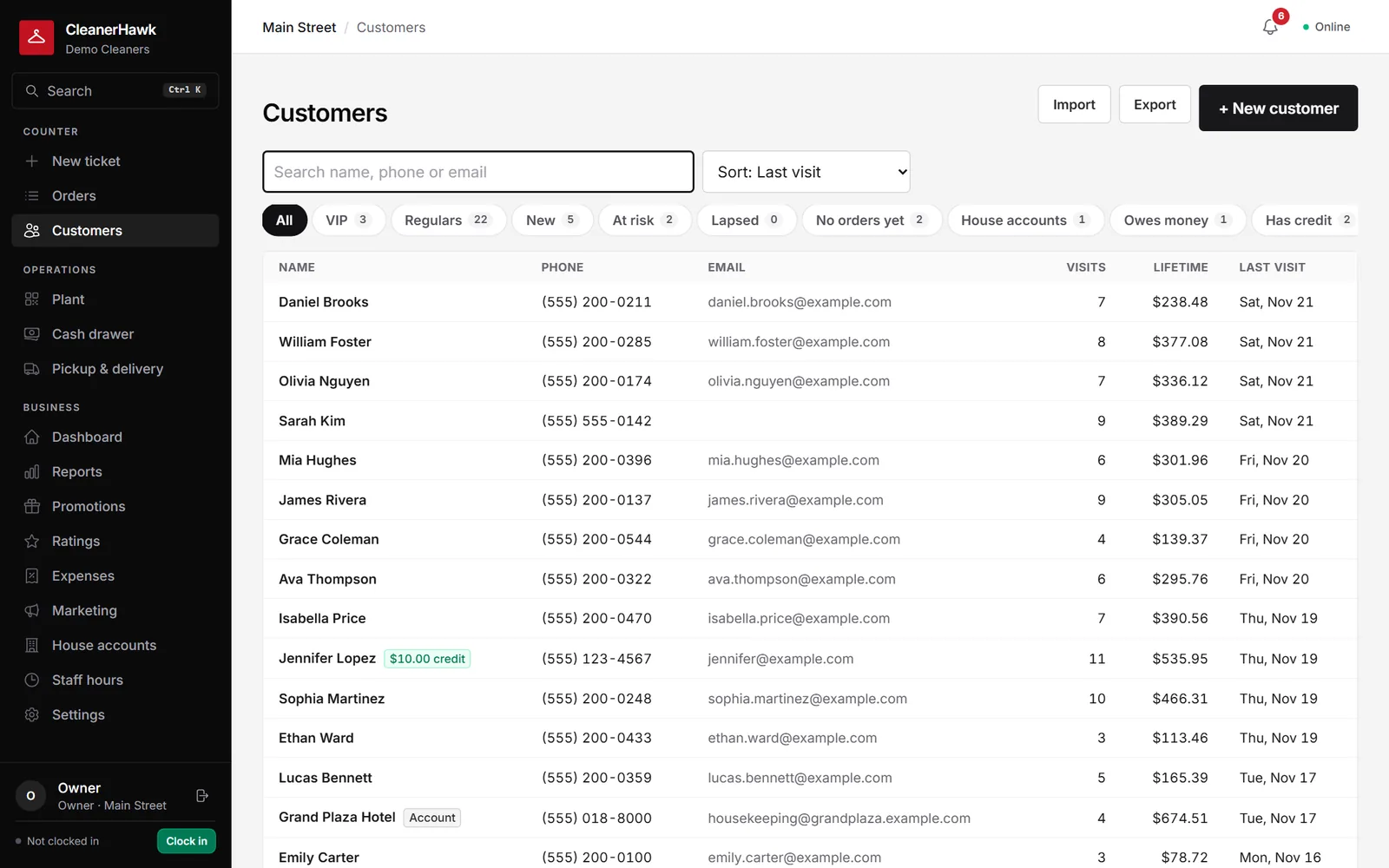
Most systems let you export customers to a CSV or Excel file from an export or reports screen. If you are on paper, type the list into a spreadsheet.
Preview and import
Upload the file and check the preview. Columns such as Name, Phone, E-mail and Address are recognised automatically, and duplicates are skipped, so importing again is safe.
Bring over ticket history
If your old system can export past tickets, import them too. They count towards each customer's visits and lifetime spend, but not towards your sales reports.
Set up your shop
Add your items and prices, staff and roles, registers, receipt and tag printers, and card readers if you use them.
Run both side by side
Use CleanerHawk for new tickets for a few days while finishing open tickets in the old system.
Switch over
When the old open tickets are picked up, stop using the old system and run everything in CleanerHawk.
What moves, and how.
- CustomersNames, phone numbers, e-mail addresses, addresses, notes and starch preferences from a CSV or Excel file.
- Ticket historyPast tickets with dates, pieces and totals, if your old system can export them. They show on the customer profile and count towards visits and lifetime spend.
- PricesRe-entered in CleanerHawk, or set up with our help from your current price list.
- Open ticketsFinish these in the old system. New tickets go into CleanerHawk.
- Gift cards and store creditAdd remaining balances to each customer manually as store credit.
- House accountsSet up the account and terms, then add any opening balance.
Switch-week checklist
- Export your customer list to CSV or Excel
- Export ticket history if your system allows it
- Write down your current prices and upcharges
- List staff who need a login and their roles
- Test receipt and tag printers with the Print Bridge
- Note open tickets and gift card balances
- Pick a quiet day to switch over
Do I have to stop using my old system right away?
No. Keep using it until you are ready. Most shops run both for a few days while old tickets are picked up.
What if my import has duplicates?
Duplicates are skipped, so you can import the same file again safely after fixing it.
Will imported history affect my sales reports?
No. Imported tickets count towards each customer's visits and lifetime spend, but not towards your sales reports.
Can someone help me set up?
Yes. Contact us and we can help you set up items, prices and hardware.